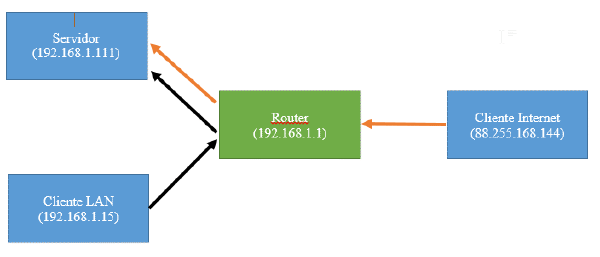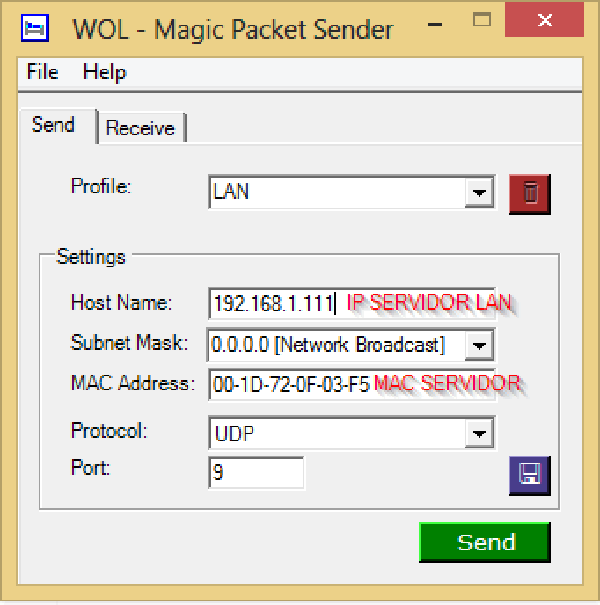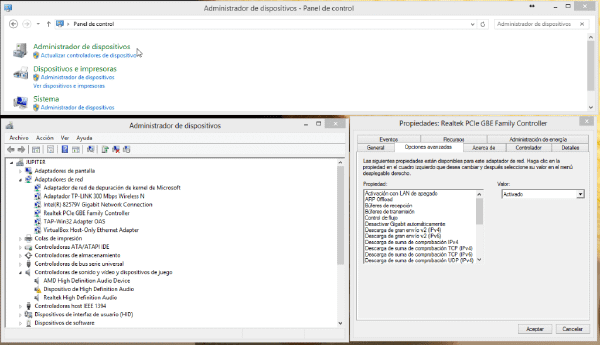
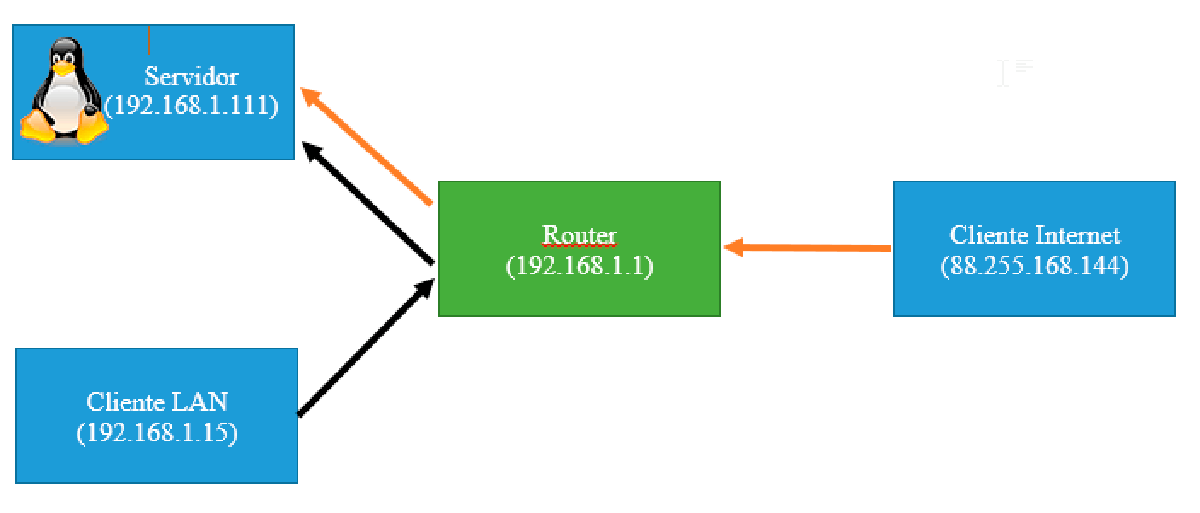

在 之前的文章中,我们 了如何配置BIOS、路由器,我们在整个过程中都获得了所需的数据。
接下来我们将看到如何执行操作系统本身的配置,这里指的是Linux。
配置操作系统#
- 配置操作系统
首先我们会安装ethtool并配置网络接口,确保电脑关机后显卡保持待机状态。
sudo apt-get install ethtool
sudo ethtool -s eth0 wol g
然后我们通过输入命令确认它确实被正确激活
sudo ethtool eth0通过获得类似的东西
Settings for eth0:
        Supported ports: [ TP ]
        Supported link modes:   10baseT/Half 10baseT/Full
                                100baseT/Half 100baseT/Full
                                1000baseT/Half 1000baseT/Full
        Supported pause frame use: No
        Supports auto-negotiation: Yes
        Advertised link modes:  10baseT/Half 10baseT/Full
                                100baseT/Half 100baseT/Full
                                1000baseT/Half 1000baseT/Full
        Advertised pause frame use: Symmetric
        Advertised auto-negotiation: Yes
        Speed: 100Mb/s
        Duplex: Full
        Port: Twisted Pair
        PHYAD: 1
        Transceiver: internal
        Auto-negotiation: on
        MDI-X: Unknown
       Supports Wake-on: g
        Wake-on: g
        Current message level: 0x000000ff (255)
                               drv probe link timer ifdown ifup rx_err tx_err
        Link detected: yes
我们从这两行中看到它被激活了
Supports Wake-on: g
        Wake-on: g
坚持不懈:#
我们开设航站楼
我们用以下命令下载脚本,赋予它必要的权限,并让它每次启动都能运行。
sudo wget rubeninfante.com/ARCHIVOSMIOS/wol.sh
//Lo movemos a la carpeta de ejecución de scripts iniciales
sudo mv wol.sh /etc/init.d
//Le otorgamos los permisos
sudo chmod 755 /etc/init.d/wol.sh
//Le asignamos la propiedad
//Podemos saber nuestro usuario utilizando el comando 'who'
sudo chown TU_USUARIO:TU_USUARIO /etc/init.d/wol.sh
// lo iniciamos como servicio a varios niveles gui command etc
sudo update-rc.d wol.sh defaults
我们会重启并按照上面说明检查是否正确。