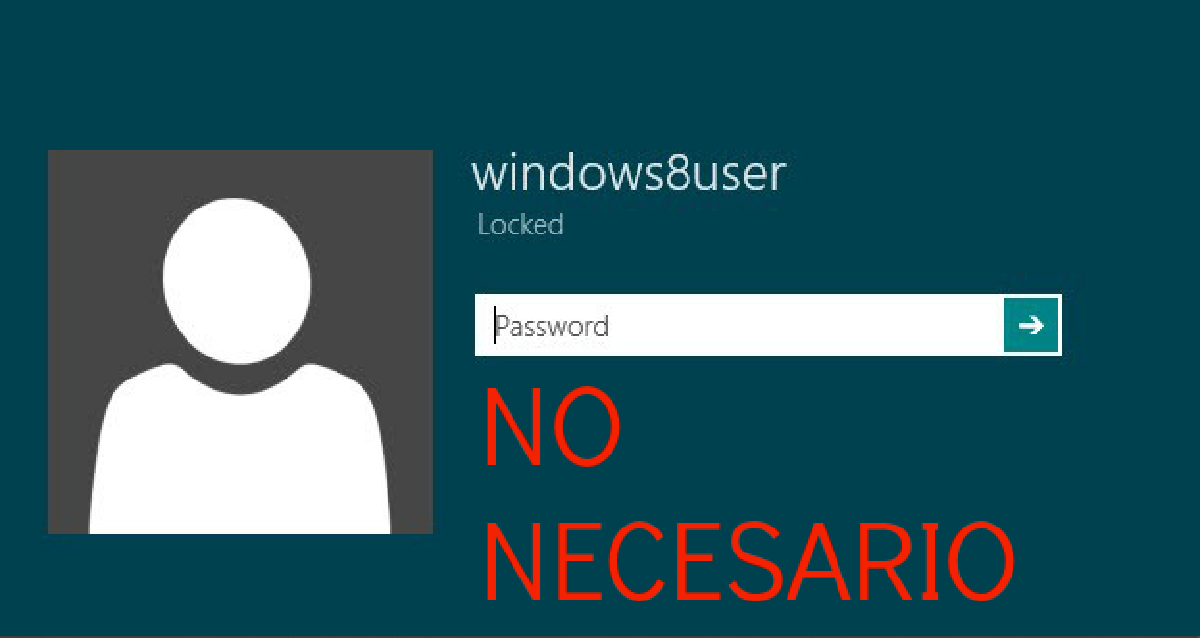

Today I had to access a PC, of which I did not know the password, this PC has Windows 8 + UEFI.
Requirements#
- CD/DVD/USB disc
- Ubuntu, Mint or any other linux distribution such as Damn Small Linux (50 mb) in case you are in a hurry.
- Of course, a Windows 8 PC with or without UEFI.
- Unetbootin
Steps for USB#
- Download a Linux and unetbootin.
- Meanwhile disable in BIOS (F2, Del, F12), secure boot, UEFI and related options (varies according to brands and versions)
- Open Unetbootin -> Select ISO -> Select Pendrive ->Start
- Insert the Pen drive into the PC to be “unlocked”
- Configure the BiOS to boot from the pen drive
- Boot Linux from the pen drive
Go to File Explorer
Enter C:\Windows\System32
Bringing Utilman.exe to Utilman.exe.bak
Jump to:
- 32Bit OS -> C:Windows
- 64-Bit OS -> C:WindowsSysWOW64
Copy cmd.exe
Paste into C:\Windows\System32 with the name Utilman.exe
Restart and take out the flash drive
On the login screen, click on accessibility
Type in the console
NET USER USUARIO_DEL_PC PASSWORD_ELEGIDOIf the account is part of Windows Live and cannot be recovered via the web, you must create a new Local Administrator account. To do this, enter the following command.
 NET USER /add USUARIO_DEL_PC_A_CREAR
 NET LOCALGROUP administrators USUARIO_DEL_PC_A_CREAR/add
Password will be empty
Perform the reverse process to restore the “security” of your system
NOTE#
If you’re using a CD, burn the ISO to one. And skip step 3
WISE NOTE#
This is not the first time that accessibility options have allowed greater “accessibility” to an attacker :P.