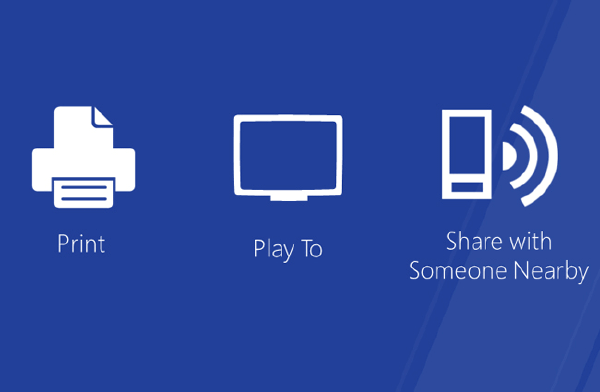

In the development of applications for Windows 8, one of the coolest functions is “Play to” which is nothing more than a name for the DLNA protocol put by Microsoft.
This protocol allows us to send audio and video files to other multimedia devices, as long as the other device is within the same network and has this function enabled.
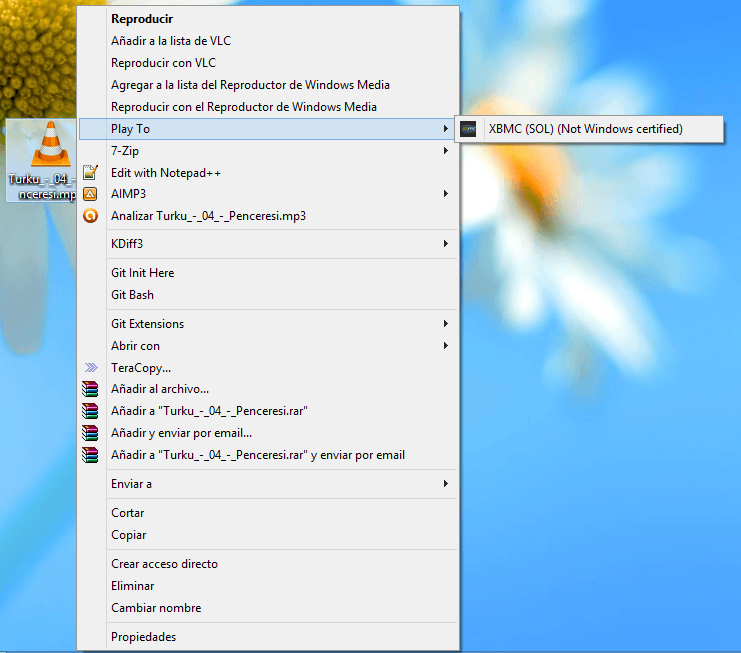
From the desk things are easy.
- DLNA, uPNP is activated from XBMC
- Right-click on the file and send
However, from a Modern UI (Metro) application, things get complicated:
We will see that when sharing the file

No device appears.
Solution#
Open metro interface (Windows key)
We type “cmd”
Right-click on “Command Prompt”
Run as an administrator
We write
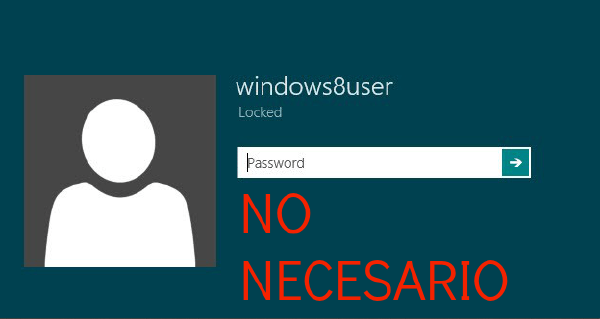
Bcdedit.exe -set TESTSIGNING ONWe restart
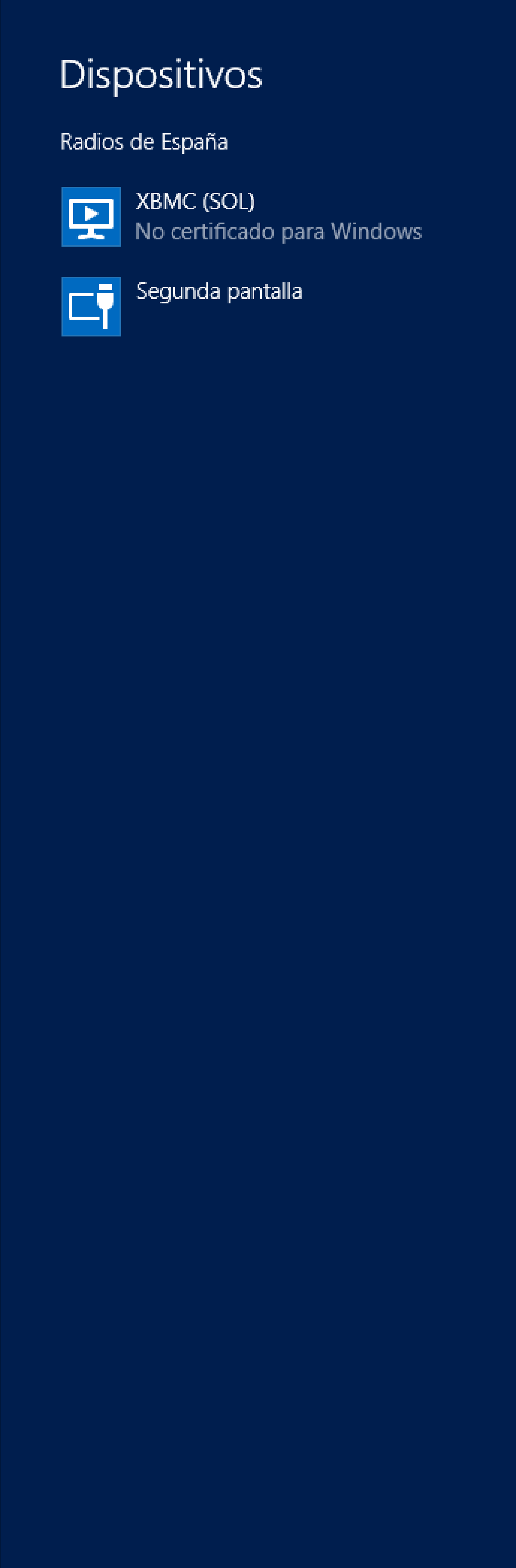
Next time we’ll look at something like this:
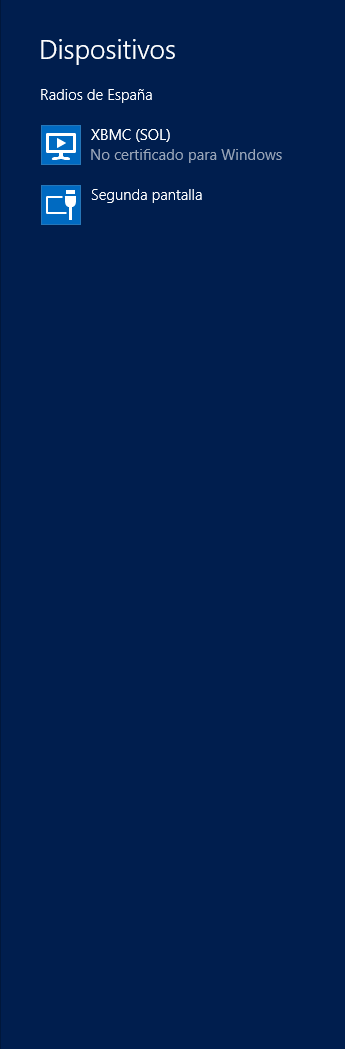
This is because through this command we enable the testing configuration at boot.
With this, we prevent the system from checking if the device with which it is shared is “Windows Certified”, so we can share our multimedia files with a Linux with XBMC (As is my case :P )